How to add Underline and Justify text buttons in WordPress ?
Published: 2026-02-07
WordPress is a powerful platform that allows you to customize your website in various ways. However, some formatting options like underline and justify text buttons are not available in the default editor. If you want to add these buttons to your WordPress editor, you’re in the right place. This article will show you how to easily add underline and justify text buttons in WordPress, enhancing your text formatting options.
Why Add Underline and Justify Buttons?
Before we go into the steps, let's understand why adding these buttons can be beneficial:
- Underline Text: Helps in highlighting important text or links, making them more noticeable.
- Justify Text: Provides a clean and professional look by aligning text evenly along both the left and right margins.
Steps to Add Underline and Justify Text Buttons in WordPress
Adding the underline and justify text button is very simple on the WordPress website. Now let's see how to add the underline and justify text button to your visual editor or Gutenberg Block editor step by step:
Step 1: Log in to Your WordPress Dashboard
First, log in to the WordPress dashboard of your website.

Step 2: Install the Gutenberg Block Editor Toolkit – EditorsKit Plugin
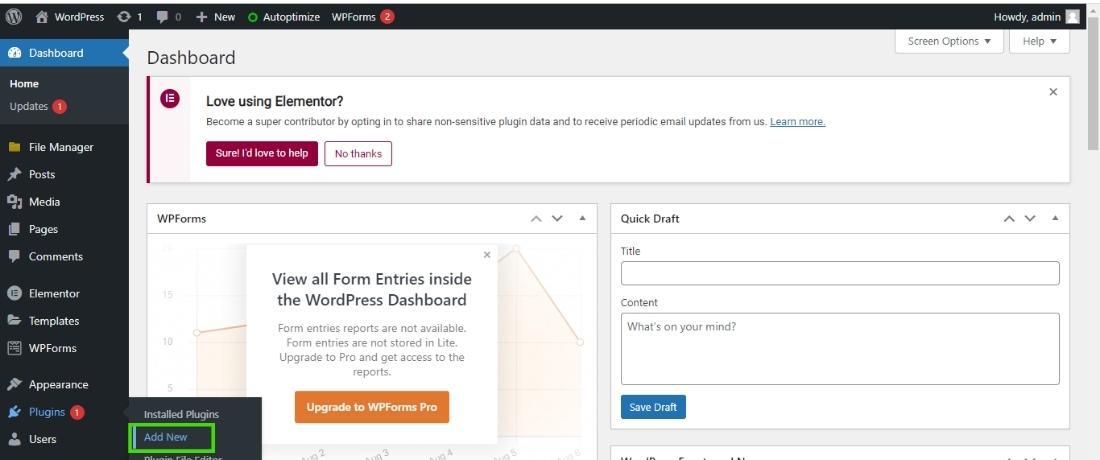
Navigate to the “Plugins” section and click on “Add New.” Search for the “Gutenberg Block Editor Toolkit – EditorsKit” plugin and click on the “Install Now” button. Once installed, click on the “Activate” button.
Step 3: Access the Plugin Settings
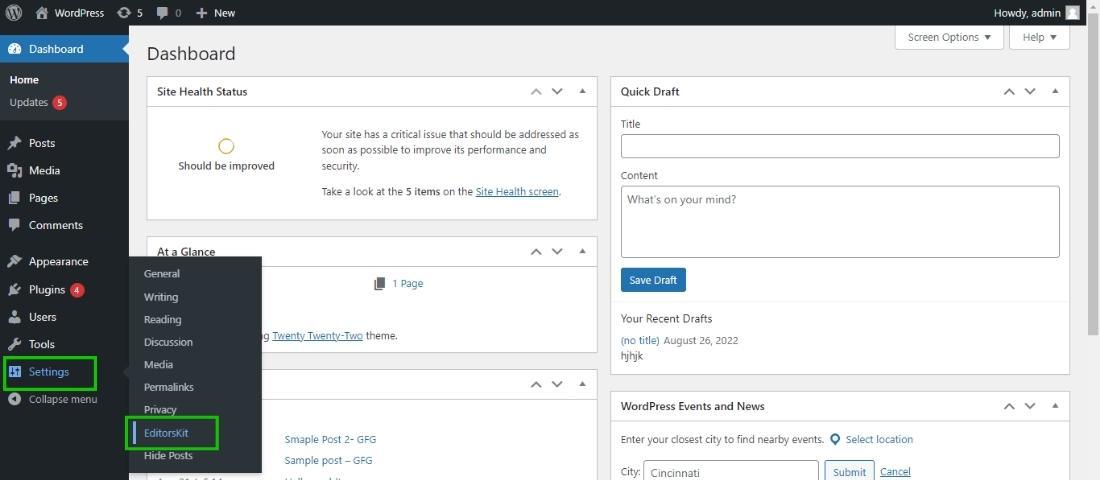
After activating the plugin, it will appear in the “Settings” section of your WordPress dashboard.

After installing the plugin click on the "Activate" button to activate the plugin.

Step 4: Access the Plugin Settings
After activating the plugin, it will appear in the “Settings” section of your WordPress dashboard.
Step 4: Edit Your Posts
To edit a post, hover over the “Posts” section and click on the post you want to edit. When you hover over a block to edit, click on the drop-down arrow to reveal the justify and underline options.
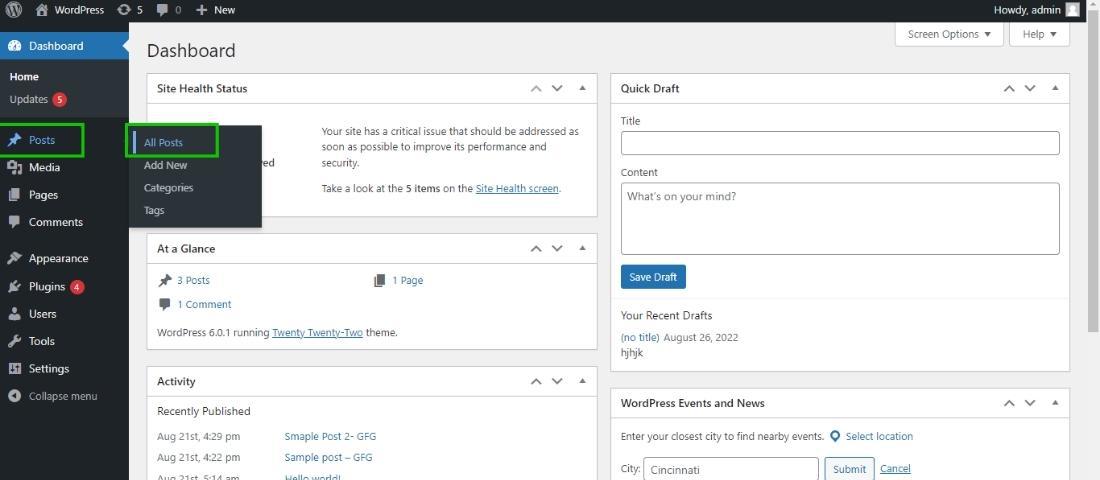
Choose the post and then click on the edit to edit the post.

Step 7: Now when you hover over the particular block to edit, click on the drop-down arrow the justify and underline option start appearing.
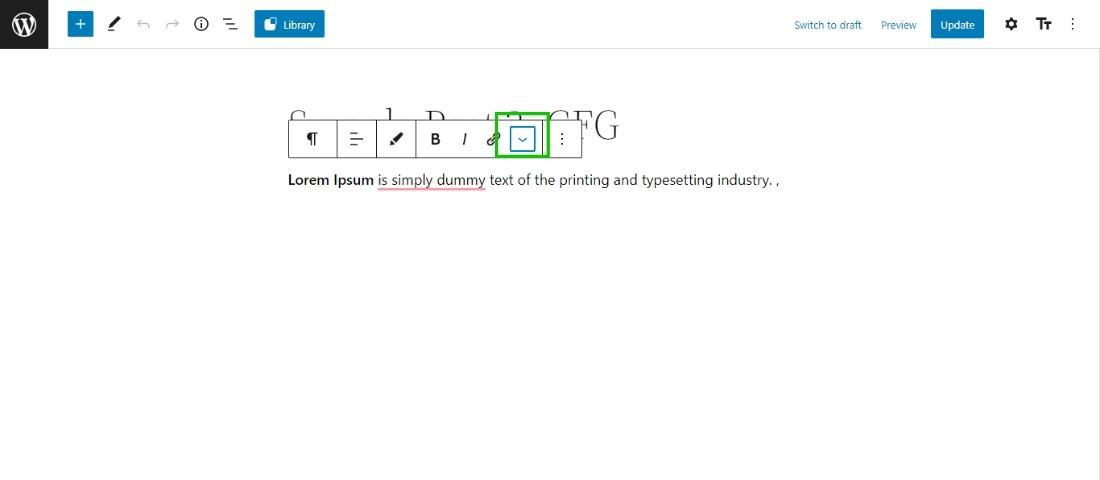
After clicking on the arrow all other editing options appear on the screen.
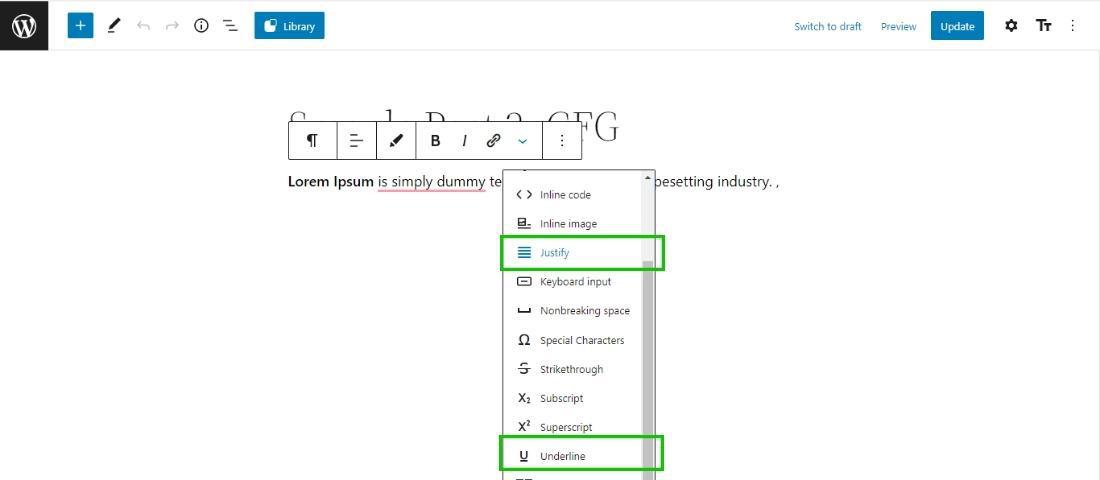
This is how you can easily add the justify and underline text buttons in your block editor.
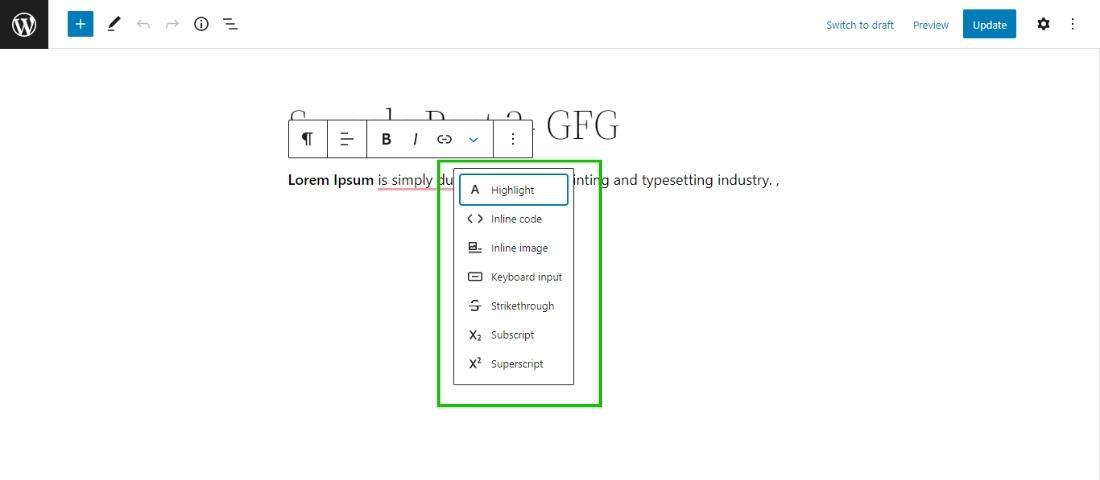
Before adding the plugin there is no option of Justify and Underline options in the block editor. So by following this method you can easily add the justify and underline option in your Block editor.
Conclusion
Adding underline and justify buttons to your WordPress text editor is a simple way to enhance your content formatting. With the Gutenberg Block Editor Toolkit – EditorsKit plugin, you can customize your toolbar to include these useful features, making your writing process more efficient and your content more attractive.